Category: Communication and Interaction needs

Words and Pictures. oh…and Sounds & Videos!

Multimedia Authoring

Where once they just did writing, pupils in EYFS and KS1 can use all sorts of tools to express themselves and to publish work. Computers make it possible to publish work, quickly and easily, that combines text with images, sound and video.
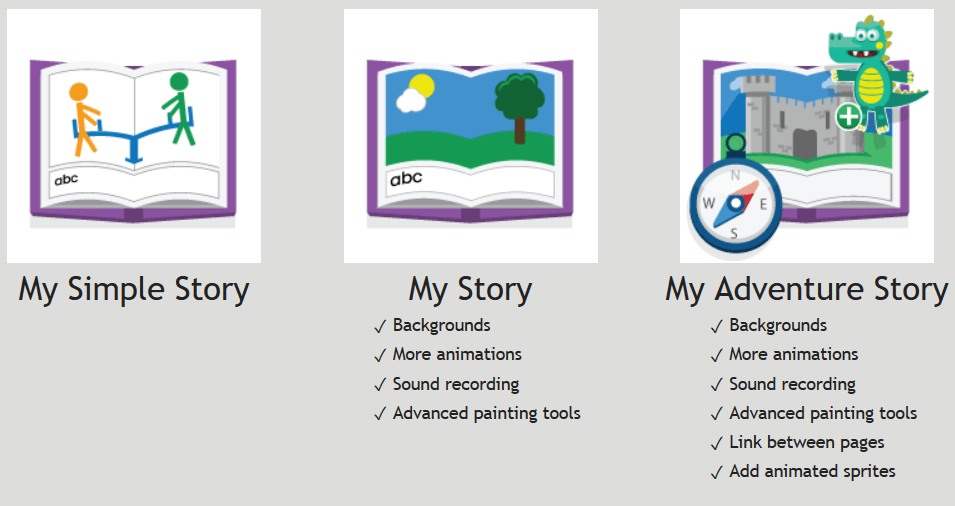
For schools that subscribe to Purplemash, 2CreateAStory is very popular with its easy-to-use interface, recognisable tools and not too much text. Children make talking stories in minutes and publish them almost anywhere.

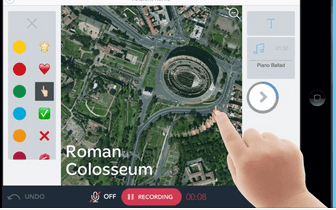
2Create a Story allows children to create their own multimedia digital storybooks. They can combine words, pictures, sounds and animation in a storybook format to publish literacy, science, history, RE and other work. This program allows them to animate their drawings, include pre-recorded or their own noises and sound files, and save their work, and share it by email, with a QR or embed code, on a display board or blog for parents and others to see.  These can also be printed out as a fold up storybook.

There are three modes of 2Create a Story: My Simple Story, My Story and My Adventure Story. My Simple Story has a simplified user interface with fewer drawing tools, fewer animations and sounds and no background button. This is to make creating books easier for younger children. My Story includes added features such as backgrounds and sound recording. My Adventure Story, probably more suited to KS2, includes the functionality to create non-sequential links between pages and animate characters

This icon displays the story planner view which shows how the story flows. In a Simple story or My Story this will be sequential. In an Adventure story it may not be. This assists children in planning their story. You can click on any page to go to that page. You can zoom in if you have a mouse with a zoom roller on it or if using a touch screen. When in play mode, the overview will still work to take you straight to a page of a story. This is very useful in Adventure stories when testing whether all the routes through a story work correctly as you do not have to go through the whole story each time. Great Fun!!

If you don’t have PurpleMash,  PowerPoint can also be used to combine text, photos, sounds and video files; and hyperlinks can be used to link between items and slides to make non-consecutive stories. This is particularly useful for doing a presentation at, for instance, an annual review. A photograph of the child achieving a target can be inserted with a sound file or text explaining what is happening. But also pupils can get their message across in almost every curriculum area, using sound, video and images as well as text boxes.
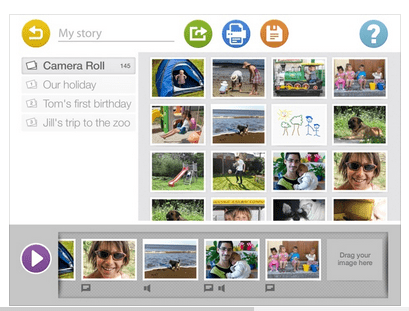
An iPad app called “Our Story” is free from the Open University and allows children to combine a photo or short video with text and sound files. This can be printed out but obviously, as with all these solutions, you lose the dynamic aspects of the work, the sound, video and animations. Another excellent tool for annual reviews.
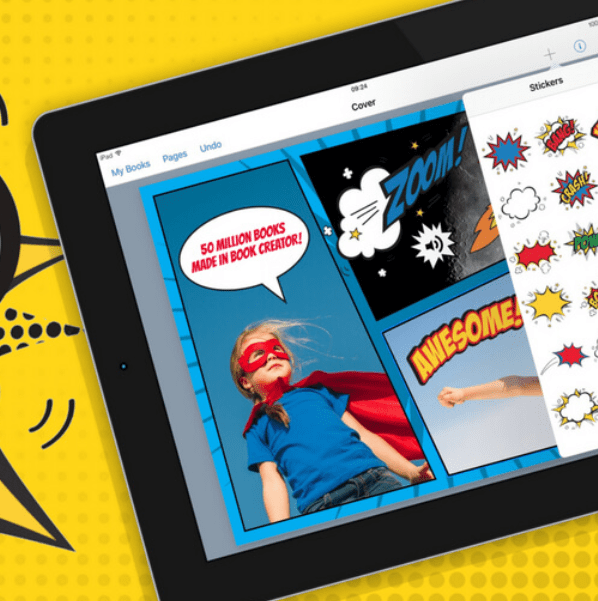
Book Creator is another app that allows the pupils to combine text and drawing, sound and video and gives different shaped books or comic templates. This iPad app costs £4.99 at the time of writing (2019) and you can also buy the app for Chromebook and Windows. After choosing your template you can change the colour of the pages, the text and add videos, sound files, drawing and text to create your own stories. Books can be loaded on the internet and the URL sent to whoever wants or needs to see the finished product. Here’s one I made earlier 🙂
 

Puppet Edu is an iPad app that allows you to search online libraries for the images you need for your humanities or science work and then add text and sound files as well as a music sound track to your work.
Online sources for Speech and Language Resources

One of the largest areas of learning need in schools is speech, language and communication needs (SLCN), with almost a quarter (22.6%) of pupils requiring SEND support having this identified as their primary type of need, and 14.6% of EHCPs issued for this reason. (2018 SEND Census)  It is an area that is fundamental to learning, to socialisation, and to functioning successfully in society. Yet it is also an area where there is a challenge to get specialist support in schools, with shortfalls in provision, sometimes considered due to shifts in NHS priorities and CCG commissioning, with some schools contracting private speech and language therapists to bridge the gap.

Many schools, in all phases, will be facing challenges in meeting pupils’ needs, both in assessment and provision. One place they could look for help is, inevitably, the internet, with a lot of sites providing useful information for staff development and practical guidance for working with pupils.

A good place to start is the Communication Trust,  an umbrella organisation for not-for-profit groups  providing guidance and support for a broad range of practitioners. Their self-assessment framework  helps anyone to evaluate their current level of knowledge and understanding and offers suggestions for training that can move their practice on.

The trust also have a plethora of practical resources focused on working in schools, for instance, there is a very straightforward booklet on teaching phonics to learners with SLCN,  which has sections on specific conditions such as dyspraxia, stammering, and Down’s Syndrome.

Another good source for online CPD is the SEND gateway, now hosted by NASEN. Several sets of materials were developed in 2012 that can be approached in different ways. The SLCN modules  have a strategic element for whole school approaches and the management of  resources, through assessment and profiling of pupils to working with other agencies and delivering interventions.

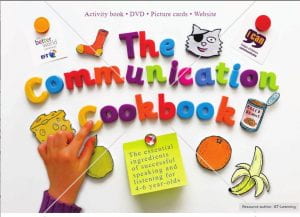
Some training providers offer  well regarded courses such as  Ican  who also have the free Talking Point booklets  a range of guides for various stages of speech and language development with appropriate activities. There is also a link to the Communication Cookbook, originally sponsored by BT, which can be purchased online. However, it can be downloaded for free from the TES.

It is also well worth paying a visit to Commtap . These are a range of activities for all levels compiled by speech and language therapists to guide non-specialists in how they can work with children in school. They can be filtered in different ways, such as key stage or area of focus, and give clear instructions on how to conduct sessions.

A more structured set of free resources have been developed by Tobii-Dynavox, a company known for providing electronic communication aids, including eye-gaze devices, and for its Boardmaker software and the associated Mayer-Johnson PCS symbols. They have been working on Core First learning. This is a  structured approach to reading development based around core words, those that make up the bulk of our interactions.    Thirty-six words are included, with three books concentrating on each of them, making 108 books in all, which can be downloaded in pdf format. These build on previously learnt vocabulary and use colourful photographs on each page as illustrations. A scheme of work is provided, although some practitioners may choose to simply use the books to supplement existing approaches.

Speech language and communication is a complex area, which often benefits from expert advice and guidance, however, if you know where to look, practical support can easily be found.

Touch Typing and Keyboarding

Typing programs

Many children can type more successfully and legibly than they can handwrite. When they have access to a device that they can type on, the publishing of their work can become much more efficient.

You will need to decide whether the child is focused enough to learn to touch type. With Touch Typing the typist should not look at the keyboard or hands, all the information is on the screen.

If they are not mature or focussed enough they can learn to speed up their keyboarding anyway. Just typing regularly will help them to find their way around the keyboard and may help with word patterns, spellings, upper- and lower-case knowledge.

Touch typing is a motor learning experience. This means not looking at the hands. The best way to ensure this is to cover the learner’s hands with a light cloth. Anyone learning to touch type acquires a skill that will last a lifetime, like riding a bike.

Most will benefit from following a series of exercises that, if practised regularly, can lead to a high rate of accuracy in typing and a good rate in terms of words per minute. In handwritten exams with a lot of writing involved writing at a rate of 20 words per minute is an arduous task. Rates of 40 -50 WPM should be easily managed by young learners.

If you have a subscription for PurpleMash you will find that 2Type has informative videos about posture and hand position, as well as an excellent series of timed exercises for teaching keyboarding skills. (Sit comfortably with your back up straight and your feet on the ground). Animated hands guide children to the correct finger for each key as they fight against the clock to set a high score. Users can adjust the speed and duration of each typing activity before they play, making 2Type good for all abilities.

The activities start with single keystrokes, including letters, numbers and punctuation, and progress to cover words, phrases, and whole paragraphs.

Every challenge can be set as a 2do in the normal way, and pupil speed and progress is easily tracked with a score report. (Using 2Do, teachers can set tasks, activities and games for their class or specific children to do.)

If you don’t have PurpleMash  an excellent website for teaching touch typing is http://www.doorwayonline.org.uk/typing/  where touch typing games will take learners from the home keys to mastery of the whole keyboard and typing sentences. Each activity has a range of accessibility options.

Doorway Text Type is a touch typing tutor which takes learners from the home keys to mastery of the whole keyboard and typing sentences. This should benefit all learners, but these activities are also designed to be as accessible as possible to visually impaired learners.

Typists will need to get into a comfortable position in which the hands fall naturally onto the keyboard. The surface on which the keyboard stands must not be too high. The wrists may rest on pads if you are typing for a long time.

A Touch Typing programme is a series of lessons starting with the home keys ( A S D F J K L 🙂  and leading to full mastery of the keyboard. It is quite important to master (a score of 90% or more accuracy) each stage before moving on to the next.  It is most beneficial to practice regularly and often (10 minutes a day maybe)

It is important to be accurate before building up speed. So learners should start slowly. If a pupil  can type at a regular pace, almost to a beat, it will help them to  achieve a high speed.

Text type 3 is the latest version of this popular touch typing tutor, designed with visually impaired learners in mind. It is being updated to html5, in order to be compatible with all devices.

Text Type 2 The touch typing tutor that takes learners from the home keys to mastery of the whole keyboard and typing sentences.

Single Handed Typing This activity will guide a person who is effectively a single handed user through learning an efficient typing method. There are layout diagrams for both left handed and right handed schemes here: left hand layout, right hand layout.

Younger children might like the BBC Dance Mat typing pages. https://www.bbc.com/bitesize/articles/z3c6tfr  with  four levels to play, each divided into three stages. They will need headphones or speakers to enjoy the song and dance in each game.


Why learn to touch type?

When you can do it well, touch typing is the fastest way to write. Many people quickly learn to touch type faster than they can write with a pen. The important things to remember are:

■  Use the correct fingers

■  There’s no need to rush!

■  Always rest your wrists on the desk.

You should take a rest and shake your hands and arms to relax your muscles if you get tired.

Try not to look at your hands when you are learning to type.

Easier editing with text to speechcomputing

I was recently asked by a sixth form student about text to speech, she wanted to have her coursework and essays read to her as she found this an easier way to make sure it all made sense than reading it back. I know what she  means, often when we read back our work we see it as we meant it to be rather than as it is, and fail to notice errors – particularly when it is on a screen rather than on paper.

As she and I were talking I realised how many ways there are to get text from a screen read aloud, and, actually, how easy it is.

For a start, all operating systems have a screenreader built in. InWindows this is ‘Narrator’ and it can be turned on and off by pressing Ctrl + Windows Key + Enter. On Macs, and iPads, they have ‘Voiceover’ which can be found in the Settings of the  device. These are designed for users with visual impairments, so will often read the entire screen, starting from the top with the document title in word-processors, such as MSWord, or the URL on a  webpage, which can be a bit disconcerting. They will also describe each action, such as opening a dialogue box, or clicking on formatting. It is more information than most users need, which is why it is often better to use an add-on or plug-in with a more limited purpose.

Last summer Microsoft added reading functionality to MSWord. If you have the most up-to-date version installed this will appear as a ‘Read Aloud’ button under the  Review menu in the ribbon. But even if you are not completely up to date you can add a ‘Speak’ plug in. From the  File menu choose Options, then Customize Ribbon and change ‘Popular Commands’ to ‘All Commands’ in the left hand  drop down menu. Find ‘Speak’ and choose to add it to the ribbon. (You may be asked to create a group to make this possible. This will appear as a folder in the right hand list, which you can select.)

They are both straightforward to operate by putting the cursor  at a point in the text, or highlighting some, then clicking the button in the toolbar.

In the online version of MSWord, in Office 365 a similar functionality can be found under the Immersive Reader button. This has a few more functions than simply reading aloud. (You can find out more about Immersive Reader here.)


Another option is to install a bespoke program that will read anything on the screen, usually a toolbar that sits on top of all open windows, such as WordqSpeakq or Read and Write Gold. Both of these offer support for writing as well, with predictors and speech to text available, too. They work well and offer flexibility in that they are always available, no matter what you are working on, whether it is an essay, a presentation or even an email. Although if you only want a screenreader they can be an expensive choice.

If what you are after is improved accessibility when online then there are add ons available for the browser. Like many people I use Chrome most of the time, and I have found the Read&Write plug-in very useful. It is turned on and off with a click in the browser bar, which opens a set of controls, including play/pause and skip forward or backward. 


You could also opt for ReadAloud which copies the text into a separate box on screen so you can focus on the section you want read.

Overall there are lots of choices, all of which can make revising and editing text easier and more accurate. What’s not to like?

Podcasting

Children who struggle to get things onto paper may show how much they have learned and understood by recording their work onto MP3 devices, editing the sound file, adding a music sound track and publishing the podcast on a platform like Podcast Central on the London Grid for Learning.

What is a Podcast?

A podcast is a pre-recorded audio broadcast that can be downloaded from the Internet. They may be played directly on the computer,  or copied to a personal media player such as an iPod, or portable players, mobile phones, mp3 and other players.

Podcasting has become a significant method of communicating across the Internet.  Podcasts can be created and used effectively by users of any age, community or culture.

They have become a universal way of communicating with sound and vision freeing your audience f rom reading text.

Podcasts are (relatively) simple – the MP3 files generated by podcasters are relati vely easy to create and don’t require high-priced equipment,  allowing teachers to record without a large investment of time or money by the school.

You can use podcasting when you need a targeted audience to receive audio and video files as soon as they are published (maybe revision files for a college course)

Podcasting offers the opportunity to:

  • Show an understanding of elements of stories, main character, sequence of events & openings
  • Talk activities through, reflecting on actions.
  • Interact with others in a variety contexts negotiating plans, taking turns in conversations.
  • Use talk to organise, sequence, & clarify thinking, ideas, feelings, & events, exploring new words
  • Initiate communication with others, develop confidence in more informal contexts
  • Be confident to try new activities, initiate ideas, speak in familiar group

And why use Podcasting with children with SEN?

Podcasting encourages children and young people to improve their speaking and listening skills by raising their awareness of their own voice and of their listeners.

It supports collaborative learning and teamwork by requiring children and young people to work as a team to create a podcast.

It enables children and young people to review, modify and refine their work and share it with others.

With the technology available, podcasting has the potential for releasing the imagination of young people, their teachers and parents/carers.

The pupils’ best efforts should be celebrated and put on show, just as would be done with putting paintings or other work on display on the wall.

One of the advantages of podcasts is that they can be accessed by the pupils’ families, and can generate external feedback to add to the process of pupils reviewing their own and their peers’ work.  The pupils’ best efforts should be celebrated and put on show, just as would be done with putting paintings or other work on display on the wall.

What sort of things could we record?

I have worked with different groups of primary and secondary children with special needs.

With one group we focused mostly on speech production and vocalisation and found  how the relatively straightforward work of recording and editing voice could be combined with publishing the children’s work in a new format as a podcast.

One pair of children made a podcast about Sir Francis Drake. Both had serious difficulties getting legible work onto paper, but their podcast was informative, interesting to listen to and demonstrated their learning.

One idea was to look at CBBC Newsround  decide on a story, watch any videos, read  the story together drawing out the key words, then reconstruct the story in our own words, perhaps from a different angle, in smaller groups  talk the story through, working out individual contributions from each pupil, and practising them, supporting each other to reflect on clarity, volume, speed of talking and other considerations.

Finally, they recorded their voices onto an easispeak MP3 recorder (you can use iPod or other voice recording device)

Using software like Audacity extraneous noises and teacher’s prompts can be cut out making the recording more fluent and easier for the listener.

In another blog post I will describe the equipment that may be used and how to make podcasts with very little equipment.


Immersive Reader in Office 365

What is it?

During 2018 Microsoft brought out a few changes to both their online product, Office 365, and updated their installed version, MSOffice. Both now have a ‘Dictate’ function, that can operate in several different languages. They also introduced a ‘Read’ function, which, in the installed version is  a button on the toolbar.

However, the most exciting development was the introduction of the ‘Immersive Reader.’ This is available in both versions, however, I think it works best in the online product, so that’s the one I shall focus on here.

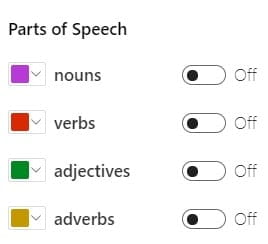
It is a tool to aid reading, and to analyse the make up of a text, through a number of easy to use functions. These include text to speech, changing the colour scheme, widening the space between letters, breaking the words into phonemes, and an on-screen ruler to isolate particular lines. There is also a function to highlight different parts of speech – nouns, verbs, adjectives, and adverbs – to focus on them.

Who is it for?

It could be used by both teachers and students. When teaching from the board teachers can use it to make points about grammar, or to focus on spellings.

For pupils it offers ways to customize the text to make it easier to read, or to have it read to them, as well as helping them to make sense of it.

How do I use it?

Using it is fairly straight forward. Opening, or creating, a document in Office 365 puts the Immersive Reader option into the ribbon at the top of the screen. Clicking on this changes the appearance of the screen, taking away the usual toolbar and providing only the Immersive Reader tools, with a ‘Play’ button at the bottom of the screen, and the other options sitting at the side. Operation is simply a matter of clicking them on and off.

For instance, the Text Preferences button allows for enlarging the font, changing it to something that may be easier to read, increasing the spacing, and changing the colour scheme, to high contrast, perhaps, or to a blue background.

The Grammar Options are where you can highlight different elements of the text, and break it down into syllables, and the Reading Options provide the on-screen ruler, in three sizes. There is also an option to link to a Picture Dictionary (using Boardmaker PCS symbols) where hovering over a word brings up an image to illustrate it.

What else is there?

You can probably find a way to provide  all of these functions in other ways. For instance, there are free on-screen rulers that allow you to provide a line focus. Or you can download overlays to change the colour of a screen, and there are now a number of screen readers, several of them free, to use as add-ons in your browser – such as Googlevox.

You could also put a text on a white board and use coloured pens to pick out the  different elements of grammar. Or even load a document in MSWord then use the highlighter tool, in various colours, to provide the same sort of analysis.

What’s useful here, though, is that all these tools are available together,  in a very commonly used product. They are easy to find, simple to use, and serve a very useful purpose, either for accessing the text, or for understanding it better.

Clicker 7 and Clicker Apps. What’s the Difference?

Many teachers are already aware of how useful Clicker 7 is in the classroom. Clicker 7 is a talking word processor with predictive text, grids of words to support the early writer with spelling and offers a built-in planning tool to help learners prepare for writing. (see previous blog post)

Many schools have had earlier versions over the years: Clicker 3, 4, 5, or 6. It can be loaded onto Windows PCs and Macs.

For iPads and Chromebooks

This marvellous piece of software has been split into smaller pieces to make it  work well on iPads and Chromebooks without taking up so much storage and without costing so much. The apps cost from £30-£32 each.

There are four apps for iPads and 3 apps for Chromebooks.

Clicker Sentences

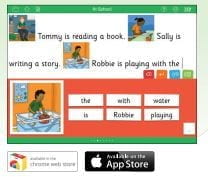
Clicker Sentences is ideal for emergent writers, English language learners and for older children struggling to acquire basic literacy skills. It supports children building their first sentences using words from a grid with options for differentiated writing support. It offers model sentences, illustrated writing as well as speak feedback.

Clicker Connect

Clicker Connect is for developing or struggling writers and is good for children moving on from using Clicker Sentences. It scaffolds independent writing by offering words and phrases to support children as they build coherent text. It offers colour-coded cells containing words & pictures and speech feedback.

Clicker Docs

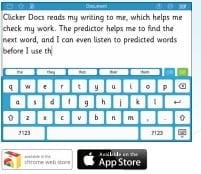
Clicker Docs is for primary pupils of all abilities especially pupils with dyslexia and struggling spellers. Clicker Docs encourages independent writing with the support of word prediction and word banks and has a talking spell checker and speech feedback.

Clicker Books

Clicker Books is for primary pupils of all abilities, pupils with dyslexia and struggling writers. Clicker Books lets pupils create their own talking books, including pictures and speech input, using a range of differentiated support. Teachers can create reading books for pupils. It has  word banks, word prediction, a talking spell checker and a sound recorder.

Cosmo from Fillisia-Interfaces – fun and games with serious intent

What is it?


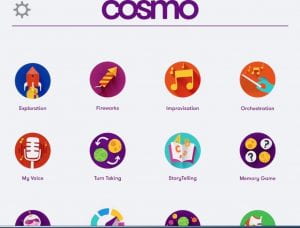
This is  a set of up to six large, white, plastic, buttons linked, via Bluetooth, to an iPad app. The buttons are switches, when pressed they make something happen. They can change colour and are touch sensitive, so the amount of pressure needed to trigger a response can be varied. Put together they provide myriad ways of working with pupils with SEND, whilst offering lots of fun to those without any learning needs, too.

Using the app, these switches can be programmed to become musical, each playing a note, or a sample of music when pressed. Perhaps each press plays the next part of a known song, or they light up in sequence to show the next note. As they are Bluetooth they can be positioned anywhere. That might be on the tray of a wheelchair, or dotted around a room to encourage movement.


They can also be used for other activities, such as memory games where players follow a sequence, team or individual challenges to find the next colour or note. All sorts of games and activities are possible. And beyond that, they are available to be used simply as switches, connected to laptops and computers to control what’s happening on screen.

Who is it for?

Initially they were intended for pupils with more complex SEND to join in with music lessons, however, they could be used by those with a very wide range of learning needs, and none. They can improve curriculum access for some, but also provide hours of fun for all, with children and young people working and playing side by side regardless of needs or abilities.

How do I use it?

The buttons, Cosmoids, come with a free iPad app. The simplest thing to do is to scroll through the games and activities, select the one you want, and play it. The settings will automatically be loaded onto the switches. However, you can also configure each one separately, adjusting colour, sensitivity, and response. It is very easy to get started, but with options to make that make usage almost unlimited.

What else is there?

Very little. In the area of music and disability there is Skoog http://skoogmusic.com a polyutherane cube that triggers midi files when squeezed. Also a clever device and one  that is proving useful for access in all sorts of settings.

There are also Bluetooth and wireless switches available from companies such as Inclusive Technology http://www.inclusive.co.uk . Although some can be a bit flaky in operation, dropping their connections and needing re-configuring. Cosmo is pretty stable.

More information can be found at, https://www.filisia.com/cosmo .

Widgitonline: Flexibility and choice made easy.

Image result for widgitonline

What is it?

The use of Widgit software to create resources that make text more accessible for children with a range of SEND, and none, has long been established practice in our schools. The company’s Writing with Symbols and then Communicate Inprint titles have been staples of the SENCO’s toolkit for some years. More recently they have also brought out an online version, the beauty of which is that it is available anytime from anywhere as long as you can get on the internet.

Originally these resources were intended for desktop publishing, for creating materials that would be printed out and used with learners. However, the latest versions – the online one in particular – can also be used to create electronic resources.

As you type or, more recently, dictate, so symbols are added to the text. This helps learners who struggle with literacy to decode and to understand the words on the page.

Whilst it can be used simply as a word-processor it becomes really useful when you use the templates that come with it.

Who is it for?

It’s really a resource for teachers rather than learners – although children and young people could use it to create documents. You can use it to make all sorts of stuff that is useful with pupils with SEND, including activities, communication books, labels, certificates, prompts, posters – just about anything you print out. You can create layouts for communication aids, perhaps for a PECS book. Or maybe  a game of picture bingo. The key feature is that you can easily symbolise the text to improve its accessibility.

Related imageTeachers of pupils for whom English is an additional language (EAL) might use the translate function to provide a home language label alongside English and a symbol. With this template you create a card with a symbol and two languages. Typically English and a home language.

When using it as a word-processor you can simply type in text, or use the speech to text function – means both you and your learners can quickly get text down. The text to speech option allows them to hear it back to make sure it makes sense.

How do I use it?

You need an account, which can be comparatively cheap, then log in online. There are two main options, Grids and Documents. The first is for printed materials, the second for letters or less structured outputs that might remain electronic.Image result for widgitonline translate

The saving options include the possibility of sharing, so you can work within and across teams to create a bank of resources.

There is a ‘Help Centre’ link at the bottom of the Home page, which can be hard to find. It’s not very prominent. However, once you have located it there are a couple of videos to show you what to do.

What else is there?

Alongside the software Widgit produce a lot of symbolised resources for teachers to download and use. For instance, a traditional story such as Little Red Riding Hood, will come in at least three versions with different levels of language complexity and symbol support, along with activities and flashcards about key characters.

Teachers in London schools using the LGFL can download these for free, without having to subscribe to the software.

There is very little else like Widgit on the market. Mayer-Jonson have Boardmaker, which for some reason often seems to be the preferred option for speech therapists. It is pricier, but can be used to create more complex, on-screen, resources.

Encouraging Speaking and Listening using ICT

Here are some suggestions for engaging young children in speaking and listening as well as some reading and writing.

An Easispeak (microphone shaped) MP3 recorder are an important item to have in the classroom.  Children can record their voices and then play it back to listen to themselves.

You will probably have (in the EYFS) some Walkie Talkies or pretend mobile phones.  They are fun for friends to play with.

Also possible are voice changers, recordable postcards, talking clipboards etc. TTS are great for that sort of thing. http://www.tts-group.co.uk/primary/ict-computing/speaking-listening/

What about a sing-along CD player?
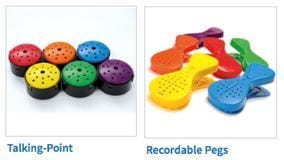
TTS also have such items as “Talking Tin Lids” and “Talking Pegs” and “Talking Buttons”


Here is a list of iPad apps that could help with communication:

iPads offer many ways to support communication, from full (more expensive) AAC Apps to cheap or free Apps offering limited but useful communication. You would want to choose based on whether an app can be personalised easily and what kind of speech output it has (male/female/child) and voice quality. How easy is it to learn and can your edits be backed up?

Meanwhile some apps to just encourage utterances and vocalising might be:

An App that encourages speech: Talking Tom/ Taking Ginahttps://itunes.apple.com/gb/app/talking-tom-cat-2/id421997825?mt=8 The animal repeats what you say.

Mad Pad  is a great app for making music but you can programme buttons with your own recording so can turn it into a talking machine: (see Richard Hirstwood’s video on You Tube: https://www.youtube.com/watch?v=P-OnVavvAqM )

(My ChoicePad    https://itunes.apple.com/gb/app/mychoicepad-pro/id422681762?mt=8   is a cross between a signing App and a communication aid App, offers a combination of 450 core vocabulary Makaton symbols and Makaton signs. My ChoicePad has video clips of signing accompanying the symbols, as well as line drawings of how to make each sign, and speech output. You can also use your own photos and voice recordings.)

Picture stories (with record voice facility) for expressive language

Our Story (From the OU) https://itunes.apple.com/gb/app/our-story-for-ipad/id681769838?mt=8 for putting together photos, speech and text

Shadow Puppet Edu   free  https://itunes.apple.com/gb/app/shadow-puppet-edu/id888504640?mt=8 allows the user to tell a story across pictures drawn from the camera roll or various online galleries.

Also Sago Mini DoodleCast (2.99) https://itunes.apple.com/gb/app/sago-mini-doodlecast/id469487373?mt=8  (record your speech whilst drawing a picture)

Click n’ Talk (2.29) https://itunes.apple.com/gb/app/click-n-talk/id416650367?mt=8 An augmentative communication app that allows the user to attach text and voice to individual pictures, and organize photos in photo albums

TalkBoard (12.99) https://itunes.apple.com/gb/app/talkboard/id416436888?mt=8  turns your iPad into a communication aid and visual prompt board. TalkBoard is affordable because it does not come with built-in pictures or symbols, which many other apps charge extra for. You can easily use your own pictures and symbols to personalise the app.

Working together to stimulate speech and communication:

The Toca boca  apps are marvellous for stimulating talk: https://tocaboca.com/

On a browser: If you have PurpleMash there are lots of tools that allow voice recording like 2CreateAStory and the MashCams.

JiT (free on the LGFL) can add spoken word to drawings, animations etc  http://j2e.com/jit?idp=lgfl

Communication Apps

Scene and Heard is a good app for the beginning of communication. This would need to be set up with familiar pictures and recordings to work for your children.

Subscribe By Email

This form is protected by reCAPTCHA and the Google Privacy Policy and Terms of Service apply.

Skip to toolbar