Category: Communication and Interaction needs

Clicker 7 – a properly ‘Inclusive’ resource

What is it?

Clicker 7 is a combination of a word-processor and a range of very adaptable, on-screen, grids, sometimes used separately, sometimes in combination, that is installed on desktop computers and laptops.

For learners struggling with literacy, for whatever reason, there are a number of aids to writing, including text to speech, a word-predictor, images or symbols inserted automatically, voice prompts, and word banks. There is also a built-in on-screen keyboard for those who are using switches or eye-gaze.

Further supports for those with SEND include changing the font, font size and colour, background colour and voice of the text to speech.

The same coding underpinning the word banks is also used separately to create on-screen books – both to read and to write – matching exercises, labelling activities, and even speaking and listening activities.

Clicker 7 also includes the Clicker Board, an integral planning tool that can be used to structure work, which can be used with multi-media as well as text.

Who is it for?

Whilst intended for primary aged children, even older students with a range of challenges to learning can use it, as well as those with none. As a word-processor it operates in a similar way to industry standard applications, such as MSWord, but with many of the superfluous functions – such as the mail-merge and the page styles – stripped out.

Pupils who are beginning to write independently will benefit from word grids to build sentences, or to provide key vocabulary, whilst those who are becoming more independent can use the predictor to help with word-finding and spelling, and the screen-reader to let them know if their writing makes sense.

Those with physical disabilities might also benefit from using the predictor to reduce keystrokes, as well as its switch access resource, or its integrated eye-gaze capability.

It offers as much, or as little, support as is needed.
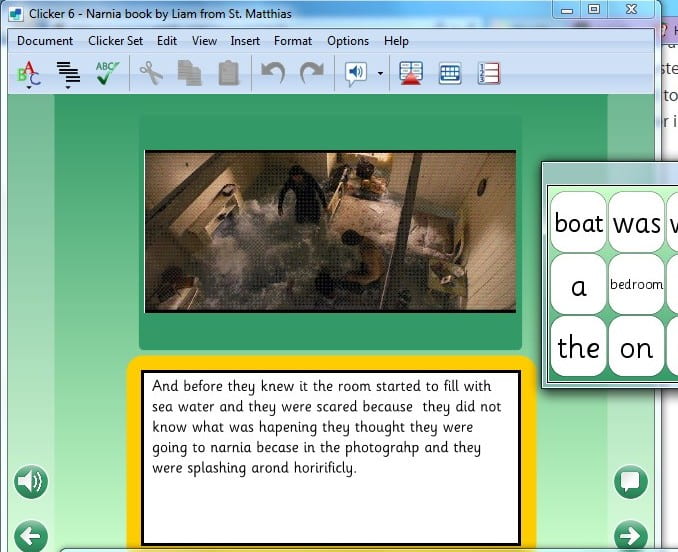
The grids facility can be used separately to create myriad activities, from matching involving text, images and sound, to labelling diagrams, sorting into groups, finding pairs, and writing books.

There are over 3,000 grids that are provided online covering the whole primary curriculum, and more, at http://www.learninggrids.com . The software comes with templates to create your own, along with several thousand images, although you can add your own, too.

How do I use it?

You can find uses for it in all aspects of the curriculum, but especially where pupils need to write. Beyond that you might use it to create a matching activity for young learners to find words and images, or maybe a multi-media mindmap on the interactive whiteboard with everyone involved when starting a new topic. It can be used with the whole class, small groups and targeted individuals.

There are a short training videos for you to learn every aspect of the software  at the Crick  online training videos.

What else is there?

There is very little like it. You can find some of its functionality in other programs, but few that combine them. MSWord, for example, has text to speech. Widgitonline will associate images or symbols with text, and WordQSpeakQ can provide an inline predictor. Powerpoint might let you multi-media to make books and demonstrate understanding, but without the supportive features of Clicker.

Older learners could use DocsPlus which works in a very similar way, but with added features that make it eligible for access in exams, as well as several iPad and Chrome apps.

Accessibility – a Good Reason to use an iPad

Lots of schools have iPad in classrooms, sometimes one for each child, sometimes a set between classes; however your school uses them generally, iPads are invaluable for children with special needs. Obviously, you can load some excellent apps, but also the iOS Accessibility Options make them very versatile in accommodating the needs of our special learners.

There are some decisions you need to make before using the iPad with a child.

You may have a child with poor mobility who needs the iPad positioned on a desk to use it. What size iPad is going to be best? Will the child use the iPad in landscape or portrait position? Will their fingers reach the keyboards? (This is an important question if the child has poor motor function and may need to rest a hand on the iPad to steady herself.) The iPad may need to sit on a “sticky pad” to stop it being pushed along the table when being used.

What cover and stand do you need for this particular child? (Do you need a very rugged case?) An iPad holder with a “foot” that allows the iPad to stand without being held will be useful. There are also all sorts of mounts that can be used if the child you work with has a wheelchair.

Are you using apps with speech feedback, so do you need headphones and if so which ones? Make sure they are rugged enough to stand up to daily use.

Ideally each child with SEND should have a machine personalized for them that they have access to whenever it is needed.

Some iOS Accessibility options

With Typing Feedback your device can give you feedback as you type as well as speaking corrections and word suggestions.

To set up typing feedback go to Settings >General >Accessibility >Speech >Typing feedback

Here you can turn on character feedback, speak words or speak auto text.

You can also have predictions spoken: you can touch and hold on a word to hear predictions as you type.

Speak Selection lets the user highlight text in any application and will read the text. Users can increase the font size in various apps and iPad also offers an audio option for confirming keyboard actions.

Guided Access on the iPad may be the most useful accessibility option! It temporarily restricts your device to a single app, so the user cannot navigate away from it until the activity is complete.

You can also disable areas of the screen that are irrelevant to the task and you can disable the hardware button to set up guided access.

Go to Settings >General >Accessibility >Guided Access.  You must set a pass code that controls the use of guided access and prevent someone from leaving an active session

With the iBooks app (available as a free download), ebooks can be downloaded, organised, and read. iBooks is compatible with VoiceOver, so you can have books read aloud. It is possible to read in different orientations and to choose larger font sizes or different fonts.

Diving into Scratch

What a busy morning. A lot of hardwork, but a lot of fun, too, and plenty of challenges.

We began with looking at the steps of a line dance and how instead of talking through each movement they give a sequence of steps one name. So a ‘link’ is putting a foot to one side, crossing the other one behind it, then moving the first foot sideways again, before bringing up the second foot to meet it. A lot easier to say “Do a link,” than to run through that sequence of commands each time. And you can use it again and again in different dances. In fact every dance is a collection of these sets of steps. A bit like coding where you bring together sets of instructions rather than having to rewrite the code every time.

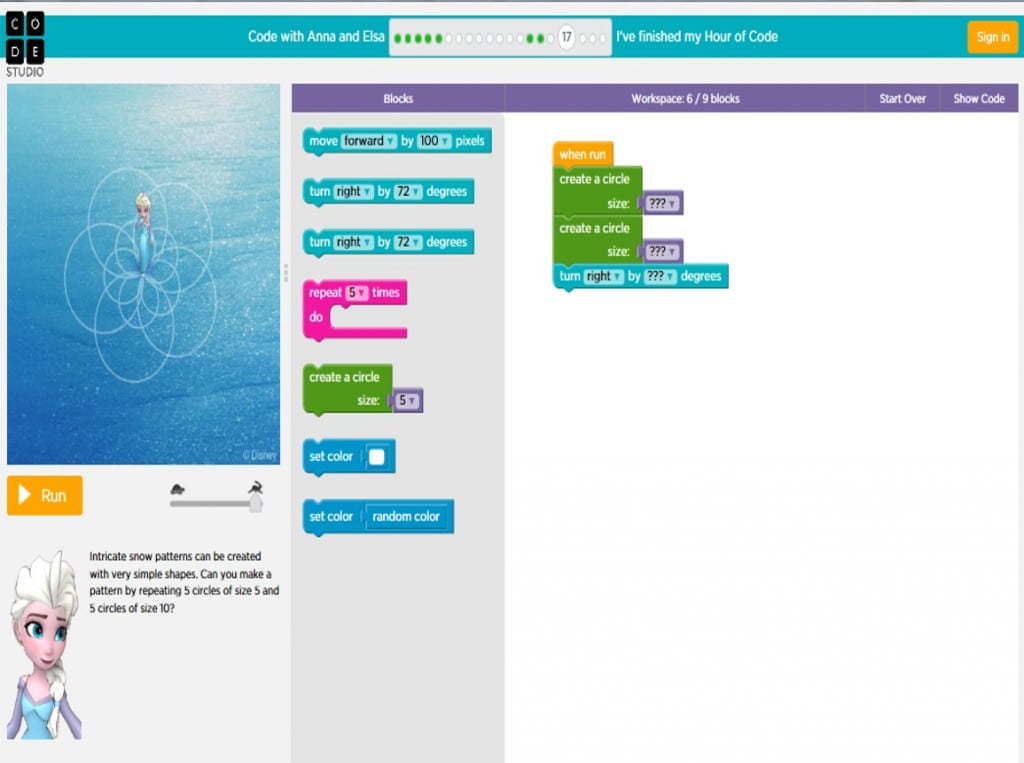
We put this into practice in http://studio.code.org where we used the activities based on the film Frozen. These started out fairly easy, then we had to join them together to make ever more complicated shapes, like snowflakes and linked circles.

Frozen coding with Anna

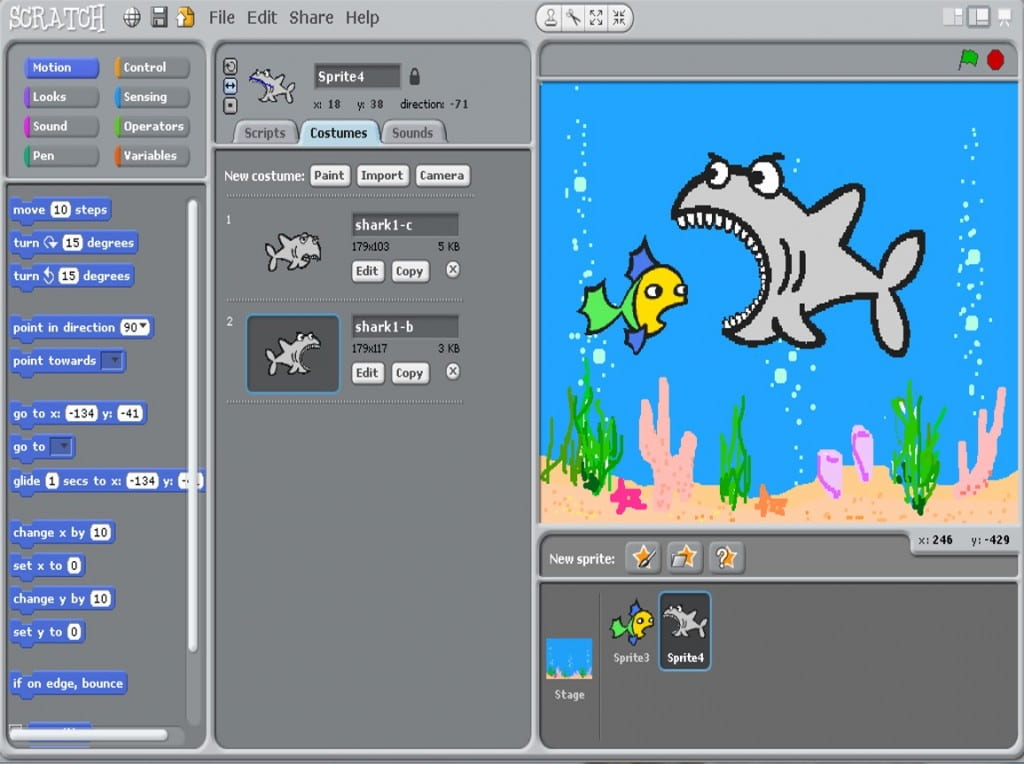
Then we put into practice what we had learned from the simulated coding environment in code.org  by coding for real in Scratch. Some people  hadn’t used it before, but everyone got to grips with it very quickly.

After a quick tour of the coding screen the task was to create a fish tank, put a fish in it, then get it to swim backwards and forwards.

Scratch fish tank

We had to use the ‘Forever’ command and get the fish to ‘bounce’ whenever it hit the sides, so it ended up swimming around the tank. At the end everyone was adding more fish and getting them to swim colourfully around together.


Keyboarding skills.

Some children with disability (perhaps global delay, Ehlers-Danlos syndrome, dyslexia, cerebral palsy etc) have trouble with fine motor movements and struggle to hold pencils, tiring easily. They may have writing which is not really legible.

If they are going to be able to publish work by typing much more easily that by writing, get them to practice keyboarding regularly.

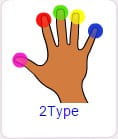
2TypeA touch typing programme should be available.  If your school subscribes to PurpleMash (online) you will have 2Type (in the Games section) which has seven programs for learners of all ages to develop touch typing, keyboarding skills and spelling patterns. It can also be bought inexpensively as software to load onto a computer or a network. http://www.2simple.com/2Type/

doorwayonline

Doorwayonline is very good (free)  website for learning touch typing and for doing keyboarding. http://www.doorwayonline.org.uk/    Also free is the BBC Dance Mat Typing website which lots of children love.

dancemat


On an iPad possible Typing apps are Typing Fingers, (average reviews)  TapTyping, (good reviews) taptyping but I can’t find any keyboarding apps particularly good for young children;Clever keyboard
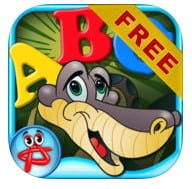
 Clever Keyboard: Free ABC Learning game for Kids is quite good but is mostly upper case.

Children could practice on a laptop or PC as the skills are transferable. And a bluetooth/wifi keyboard on the iPad may suit users better than the on screen keyboard. Apple make Bluetooth keyboards to use with iPads: http://store.apple.com/uk/product/MC184B/B/apple-wireless-keyboard-british

Make sure the keyboard and screen are positioned  well to avoid glare and that the child is comfortable.

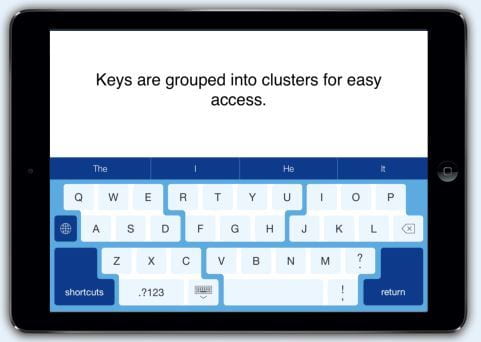
Superkeys Assistive Keyboard is a brilliant app for using on an iPad. It is great for anyone with visual impairment or with fine motor problems because it gives the keyboard user a much larger key to aim at.  It can be used in any app on the ipad that uses a keyboard so can be selected in Pages, Word, Notes, Email etc It includes a word predictor and can be personalised,  keys can contain words and phrases as well as letters.

Superkeys keyboard for iPad from Cricksoft

If you have a child whose speech is fairly clear and they have a quieter place to go than a busy classroom

Dragon Naturally Speaking

they might sometimes use Voice to Text software. This might be ideal for homework.


Dragon App
Dragon App

Subscribe By Email

This form is protected by reCAPTCHA and the Google Privacy Policy and Terms of Service apply.

Skip to toolbar