More steps in programming.


Robots are machines that we can tell what to do and that will do that thing again and again and again, whenever we want them to. Rather like washing machines or microwaves. These have programs that perform the same function whenever we set them to do a particular thing. We talked about examples of this in the world around us and thought about traffic lights.

The first challenge this morning was to work out the sequence that traffic lights followed. Students used coloured discs to act out what traffic lights do. We watched a very boring video of a set of traffic lights and realised that the timing of each light varies. We then wrote a program for a set of traffic lights.

Repeat continuously:-

Red on 20 seconds

Red and orange on 2 seconds.

Red and orange off.

Green on 14 seconds.

Green off.

Orange on 4 seconds

Orange off.

We tried following this sequence with a set of three coloured torches, red, orange and green. It was harder to do than it looks.

We then moved on to programming on screen. The program 2Go is part of Purplemash from 2Simple. It has different sets of tools in it that mean programming with it can become more and more challenging.

At first we used buttons to move in a particular direction. Then we added a set of boxes, a flow chart, to program in.

Then we added diagonals . The next challenge was to program a turtle to write a letter from our names using diagonals.

A letter F programmed in 2Go.
‘F’ for Fatima.

Fatima didn’t need to use diagonals for her letter.

To work out the programs we wrote letters on graph paper then worked out the directions and the steps.
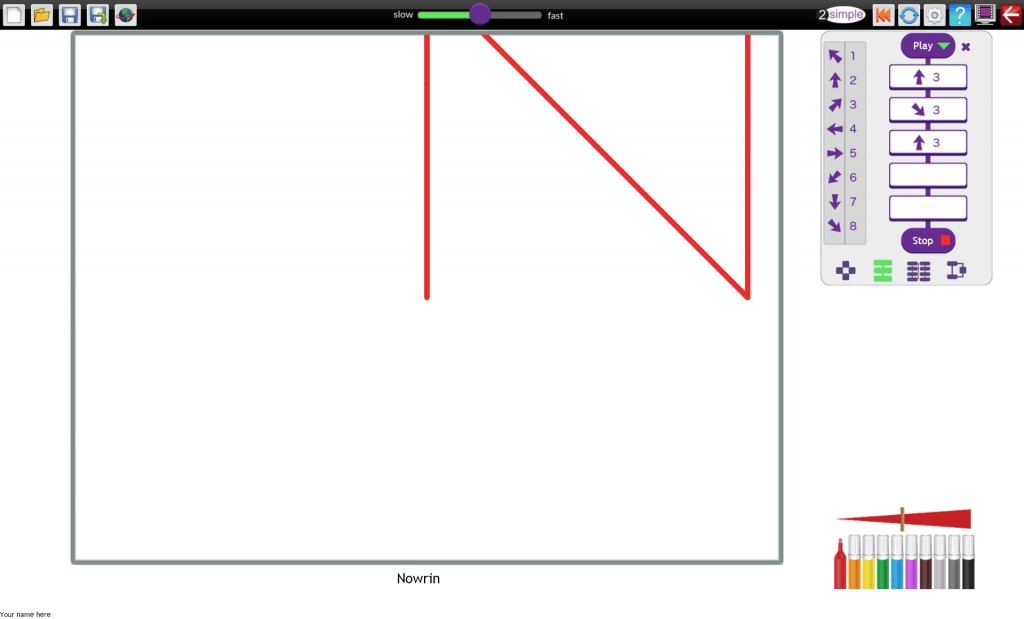
A letter N created in 2Go.
‘N’ for Nowrin programmed in 2Go.

Nowrin needed one diagonal. She needed several attempts to get it to be the correct length.
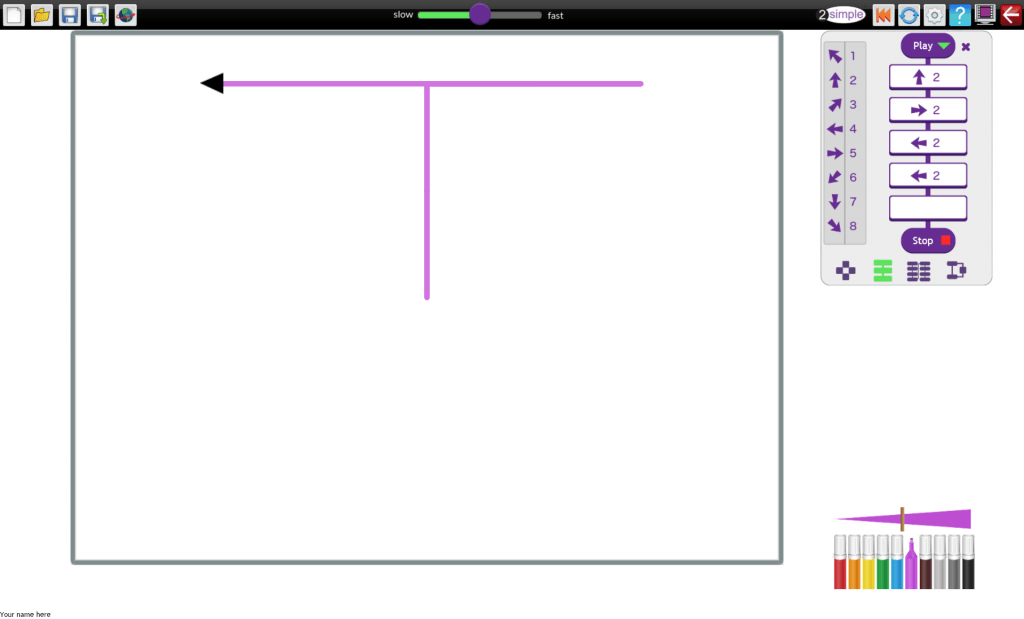
A letter T drawn in 2Go.
Tasmima’s letter T

Tasmima’s letter ‘T’ has four steps in the progam.

A letter W drawn in 2GO
How to program a ‘W’ in 2Go.

Wasima programmed her ‘W’ quite quickly. She was pleased with what she had done.

There were lots of challenges. Nishat needed to use the whole flowchart of 10 steps to create an ‘S.’ Jack did a ‘J’ that filled the screen, and James managed to write his whole name.

Everyone worked hard, but they all enjoyed it.

We Robot!

One way we use programming is to control electronic devices, such as microwaves and dishwashers. It is also how we tell robots what we want them to do. Some robots are like in films. They look like mechanical human beings. Others are machines that work in factories doing jobs where the same thing has to be repeated in exactly the same way time and time again.

We began the lesson with a sheet of 2×2 grids. The students had to work out how many different paths they could find along the lines to get from one corner to another. We then wrote these out as instructions using Forward, Left and Right. Some of the students gave a number of degrees to turn by. One route was:-

Forward 1

Right 90

Forward 2

Left 90

Forward 1

Next we marked out grids on the floor with masking tape and tried out our instructions, taking it in turns to be robots being programmed. It was sometimes hard to use the correct words, and to ignore the wrong ones.

There were also some more complex routes involving diagonal lines so we had to work out that half a turn was 45 degrees.

We had a short break then tried out what we had learned on some ‘real’ robots.

IMG_1486

This is Ritchie the Robot. He works by remote control. He is only a toy really, but he moves and turns when you press the keys. It could be quite hard to get him to go to where we wanted him. It was easier if you stood behind him. We couldn’t really program him.

This robot is  a Bluebot. You program him by pressing a sequence of buttons on the top then pressing the ‘Go’ button in the middle.

???????????????????????????????

He would follow the same route every time because the instructions didn’t change – just like a real robot.

Some of us also tried out the Beebot app to make him go follow the correct path on an iPad.


First steps in programming

Students from Langdon Park and Mulberry Schools are starting a ten week course in computer programming. To get started we thought about sequences and putting things in a logical, regular order that is always the same. Like you have to do in Line Up from Busythings. The Langdon Park group picked this up very quickly and took it in turns to put in the correct answer. The problems got harder using more colours and shapes, and changing the spaces that needed to be filled.

line up

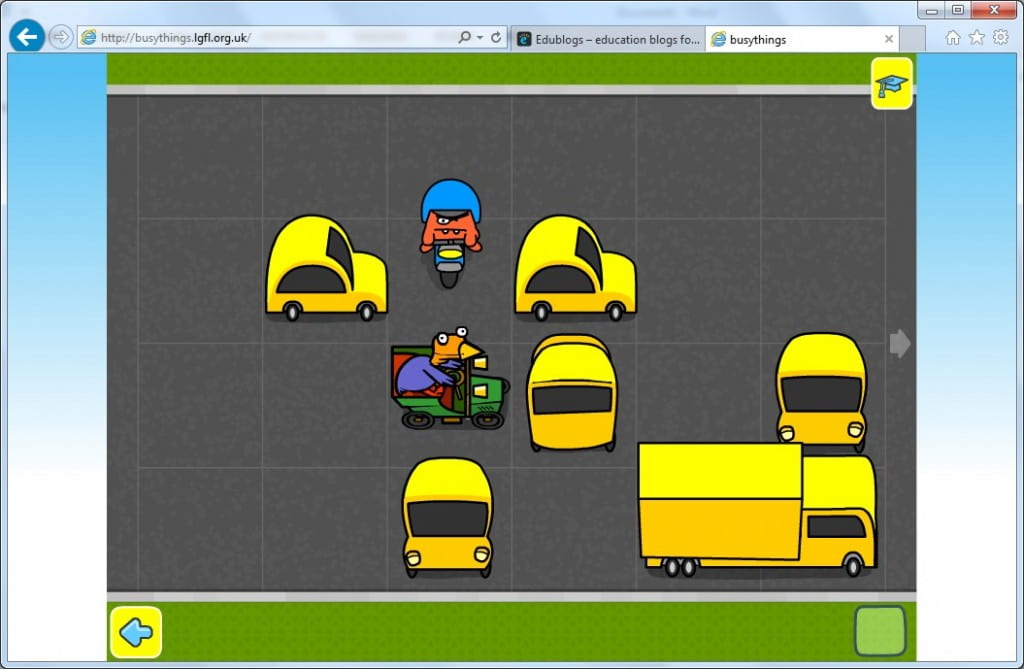
Once they had that cracked we moved on to an activity needing logical thinking. In Block-a-doodle-doo you have to move vehicles out of the path of the chicken in the green car who is the worst driver ever, carrying on in a straight line, banging into things, and expecting everyone to get out of the way. If the monster on the motorbike catches the chicken he eats him.

Block a doodle doo

We talked about sequences in everyday life, things we do regularly without even realising we are following the same set of actions every time, like when we cross the road.

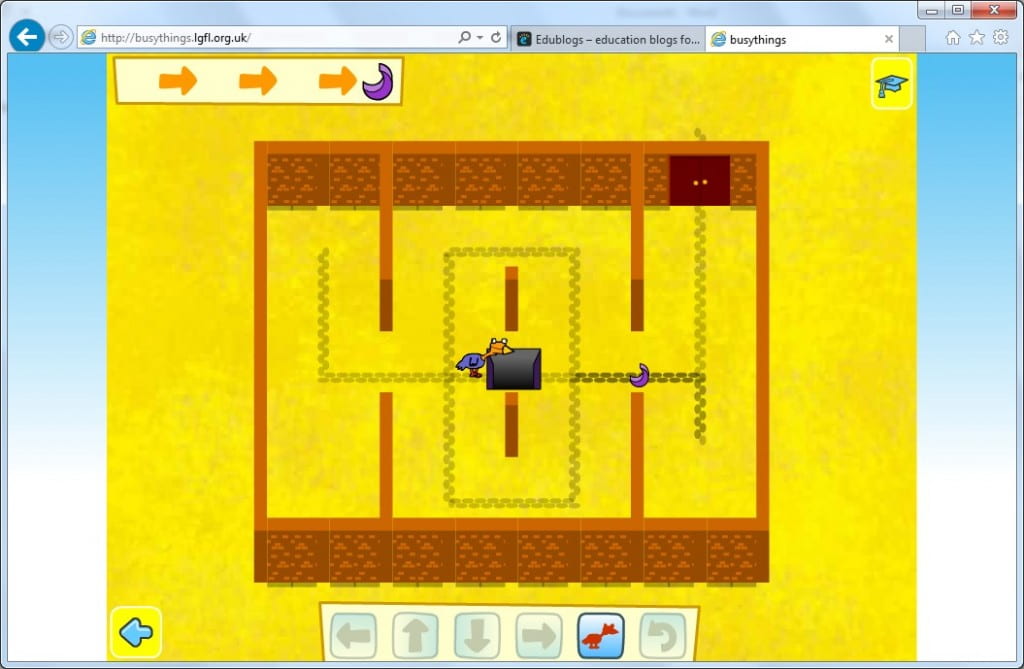
We went on to program a chicken to move through a maze picking up jewels on the way and avoiding monsters in Path Peril. This got harder and harder until there were five jewels and three monsters and no way to avoid them except by timing your moves right. It brought lots of laughs as the chicken got grabbed, gobbled and blown up.

Path peril

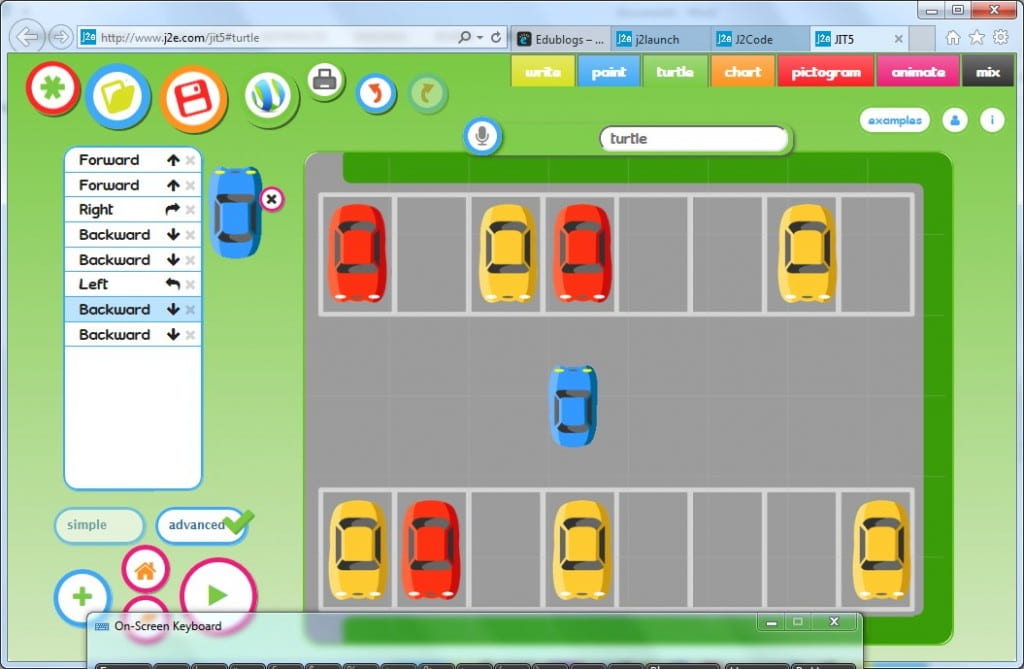
For the final activity we use J2Code and found the parking problem. Here a sequence of instructions is coded into a program to move a car from one parking bay to another. We watched as each line of code was run through then added and deleted lines to debug. We left the car park with several damaged cars!

j2eturtleparking


In our second session a week later we transformed one of our teachers into a Human Robot who only understood clear instructions: “Forward (x)” “Backward (x)” and “Turn right”, “Turn left” where X is the number of steps we wanted the robot to take. We had fun making the robot travel round the room and then describe some shapes.

Then we programmed the Mole to get the worm in the TES iboard activity Mole Maze  We made it move one step at a time, then made a list of all the instructions before pressing Go.  Remembering right and left was a bit tricky for some, especially when the Mole was facing downwards. We spent a very little bit of time remembering why we had to put “90” for a right angle, “180” for a half turn etc.

mole maze This activity comes with three levels and we all started on the easy level first.

We logged onto Purple Mash and used 2Go to programme some letters and other shapes. jack


Ways in Which ICT Can Support Person-Centred Annual Reviews

ICT and Annual Reviews

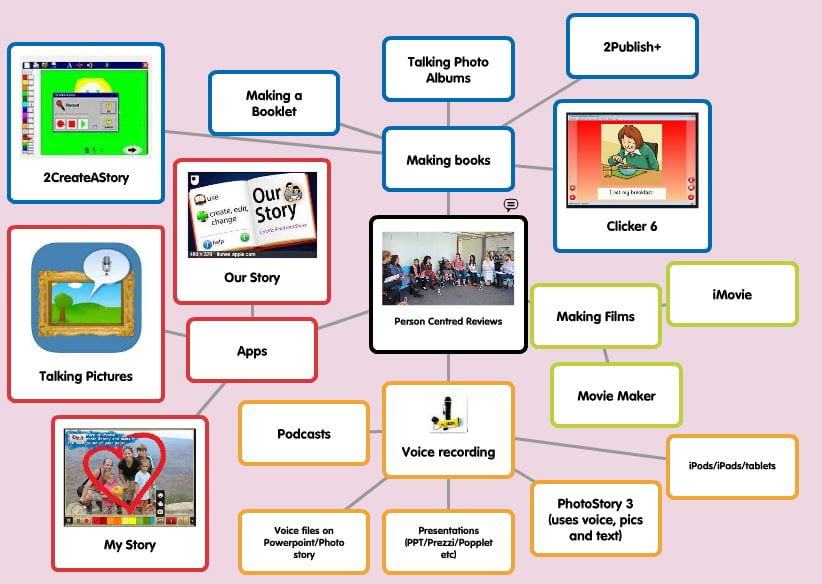
Many schools are now using Person Centred Annual reviews with their pupils. ICT can help to give the pupil or young person with SEND a voice. Children will want to and have the opportunity to demonstrate how things have been going for them in school over the year. Short films, voice recordings and photographs help to record events that have past, demonstrate progression over a period and showcase school life to others, like parents and EPs,  who will be at the meeting.

This is a few thoughts about how films, photos etc can be presented for the person-centred annual review.

Making books (to print out): You could use Clicker 7, Powerpoint, Word  to make books that you can print out. Make a minibook with 2Simple’s 2CreateAStory.

Making online books:Use Book Creator on iPad, Story Creator and various comic strip tools

Presentations and videos:UsePowerpoint or Prezi,  Our Story (from Open University), iMovie or Movie Maker. Try Adobe Spark Video.

Using Apps: Book Creator is my favourite, but you can also use Our Story, Comic Book!, My Story. Shadow Puppet.

Working with Reluctant Writers

Wordle: The Voyage of the Dawn Treader


Some Ideas for working with Reluctant Writers

DawnTreader

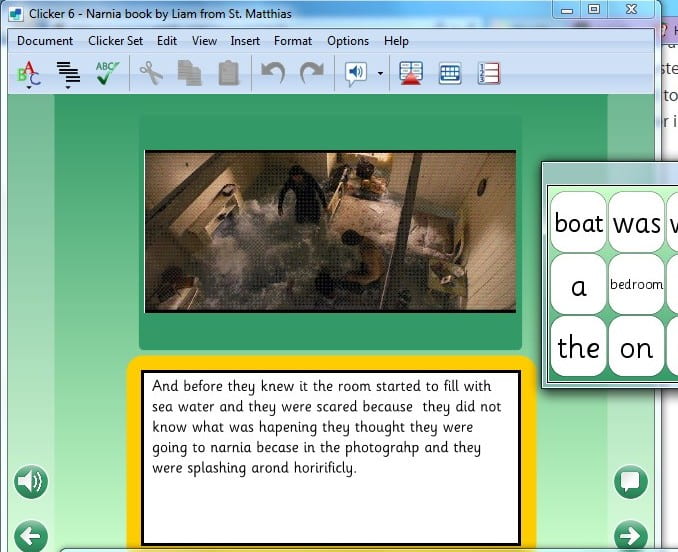
We watched the first 10 minutes of “The Voyage of the Dawn Treader” and chatted about it, about the war, evacuation, Edmund wanting to be a soldier, etc. Some children then used Clicker grids (prepared beforehand) to make a Clicker book telling the story. Others used 2Simple’s 2CreateAStory, importing pictures I’d saved on the shared area and using this Wordle (see above) to help with spellings if required.

Book about Narnia


Then we used PurpleMash MashCams.  The children choose a character to be, take a photo of themselves (using the webcam)  and imagine what it is like to be that character. (If you do not have a webcam you can import a previously taken photo) They write about their life/work/day/adventures and can also record their voice.

MashCams      MashCam

More ideas……

Telescopic text

try this one out:  http://telescopictext.com/

and then make up your own:

http://www.telescopictext.org/write/

Fun with photos

Taking photos is easy. But they can be a bit boring, a bit formal. We wanted to do something a bit different.

john galloway head and shouldersWe started by looking at some photos of me, like this one, and discussed what made a good portrait. Simple things like keeping the background clear, and trying not to catch someone looking silly.


Then we paired up and  took our own with Canon Ixus digital cameras.

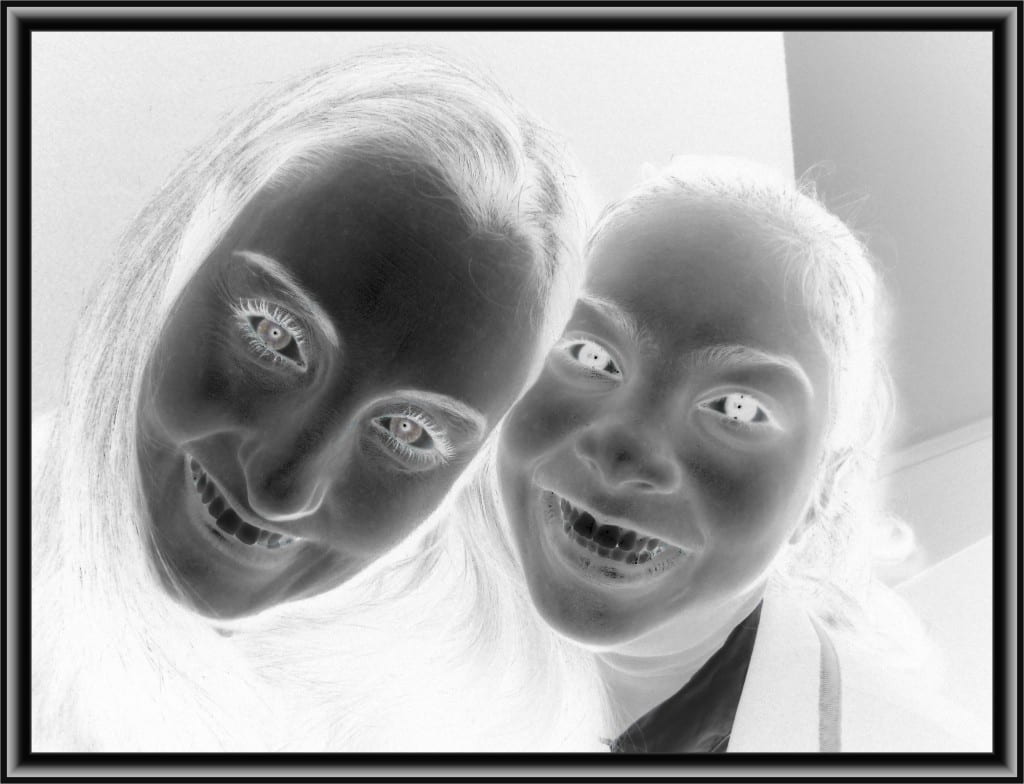
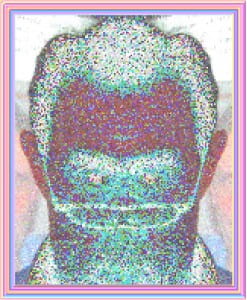
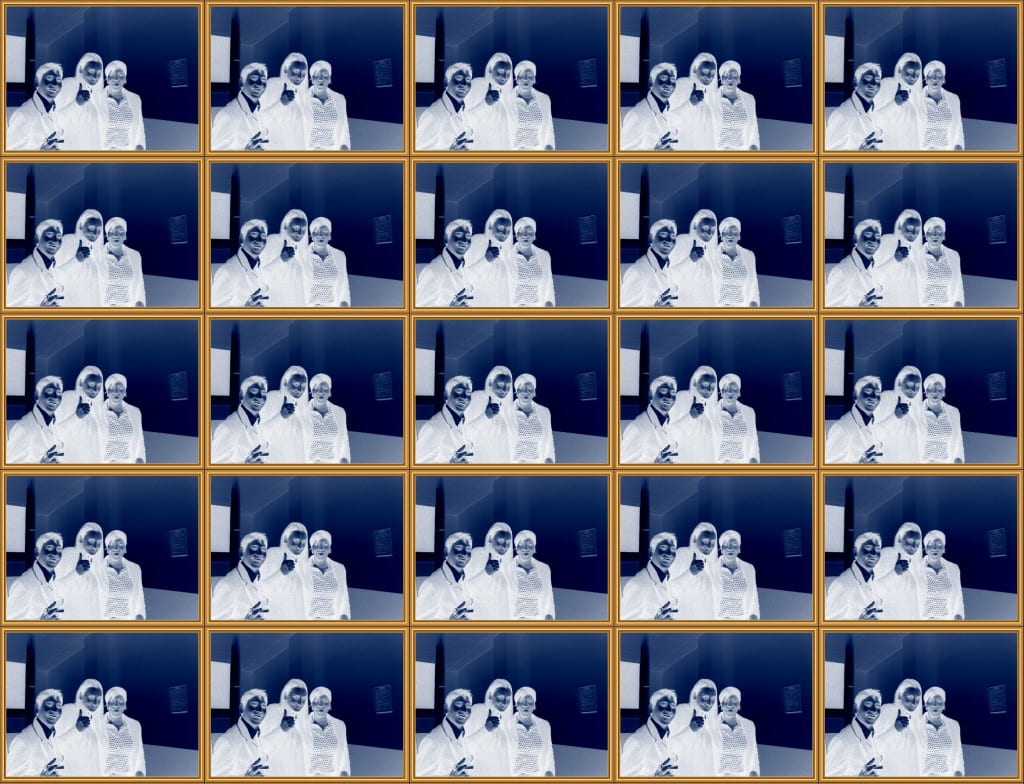
We got some lovely portrait photos, but wanted to jazz them up a bit, add some effects and make them more fun. We used Photosimple . This has lots of tools to adjust an image, such as cropping, re-sizing and red-eye removal, then in-built effects, frames and filters to play around with.

See what you think.

two witchs Mr Cool

Feeling sick Everything upFungus head Everyones Cool


Keyboarding skills.

Some children with disability (perhaps global delay, Ehlers-Danlos syndrome, dyslexia, cerebral palsy etc) have trouble with fine motor movements and struggle to hold pencils, tiring easily. They may have writing which is not really legible.

If they are going to be able to publish work by typing much more easily that by writing, get them to practice keyboarding regularly.

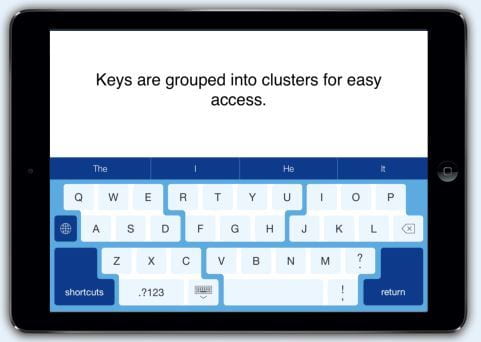
2TypeA touch typing programme should be available.  If your school subscribes to PurpleMash (online) you will have 2Type (in the Games section) which has seven programs for learners of all ages to develop touch typing, keyboarding skills and spelling patterns. It can also be bought inexpensively as software to load onto a computer or a network. http://www.2simple.com/2Type/


doorwayonline

Doorwayonline is very good (free)  website for learning touch typing and for doing keyboarding. http://www.doorwayonline.org.uk/    Also free is the BBC Dance Mat Typing website which lots of children love.

dancemat


On an iPad possible Typing apps are Typing Fingers, (average reviews)  TapTyping, (good reviews) taptyping but I can’t find any keyboarding apps particularly good for young children;Clever keyboard
 Clever Keyboard: Free ABC Learning game for Kids is quite good but is mostly upper case.

Children could practice on a laptop or PC as the skills are transferable. And a bluetooth/wifi keyboard on the iPad may suit users better than the on screen keyboard. Apple make Bluetooth keyboards to use with iPads: http://store.apple.com/uk/product/MC184B/B/apple-wireless-keyboard-british

Make sure the keyboard and screen are positioned  well to avoid glare and that the child is comfortable.

Superkeys Assistive Keyboard is a brilliant app for using on an iPad. It is great for anyone with visual impairment or with fine motor problems because it gives the keyboard user a much larger key to aim at.  It can be used in any app on the ipad that uses a keyboard so can be selected in Pages, Word, Notes, Email etc It includes a word predictor and can be personalised,  keys can contain words and phrases as well as letters.

Superkeys keyboard for iPad from Cricksoft

If you have a child whose speech is fairly clear and they have a quieter place to go than a busy classroom

Dragon Naturally Speaking

they might sometimes use Voice to Text software. This might be ideal for homework.


Dragon App
Dragon App

Workshop on publishing stories with ICT

 One of the great things about technology is not only that it can support the writing process, but it can also motivate children and young people to write who might otherwise be reluctant. Given the opportunity to create a book that they can not only print out in colour, but also add sounds and animations to on-screen, a lot of learners will engage when getting them to complete the same task with pen and paper would prove tortuous.

For this workshop we had primary and secondary pupils, all of whom could find writing an onerous event, either because of their literacy levels or their behaviour, but all of them created a story of at least four pages, with illustrations. (You can see some of them on our pupils’ work pages, here http://ictandinclusion.edublogs.org/pupils-work/ )

We started by using the Scholastics Story Starters website to generate some initial, original, even rather wacky, ideas. http://www.scholastic.com/teachers/story-starters/

Then we moved on to 2Simple’s 2Createastory to develop these ideas. This provides a simple publishing template, a page with room for an illustration and some text. On printing, four  pages will fold into a book. More than four and the software spreads the pages out so they can be folded and interleaved.

What many of the learners enjoyed was adding sound, particularly their own voices. More than one, who might otherwise be termed a ‘reluctant reader,’ recorded themselves reading their own words on each page.  There was a palable sense of excitement, pride and achievement at the end of the session when they not only had a printed book in their hands, but could also see their work on-screen.

As they finished they were directed onto a second activity using the Mashcams on Purplemash (2Simple’s online service). This, too, is very simple but effective. It provides a number of masks for the pupils to select – astronaut, police officer, Queen Elizabeth, newsreaders and many more –  into which the user inserts their own face using the webcam built in to the machine. Then they can add text and, or, record themselves. It is  a great way for getting imaginations fired up, or for practising empathy. A simple idea, but one that can be implemented quickly, easily, and engagingly because of technology.

A Flexible Friend

Flexibility is key for many learners with special educational needs and disabilities (SEND) when it comes to accessing technology. There can be many factors, some of them variable, that present barriers to using it, but providing solutions that are themselves not fixed can mean that more opportunities are created.

I recently met two young men with powered wheelchairs who were very adept at moving around their secondary school, but who found it difficult to sit at a standard desk. In most classrooms they used there were height adjustable tables, as well as a number of computers. However, the two didn’t coincide. The computers were on benches at the back, the tables in the middle of the room. So their ICT access was limited either because the available PC was not on a height adjustable desk, or there was no laptop in the room to use instead.

Simple answer, put the PC on the height adjustable desk. Or, buy a laptop.

Even these had snags. To put a PC on a height adjustable desk would mean taking out some benching and losing space for probably two other machines. Whereas a laptop would mean being very close to the table because of the position of the keyboard relative to the seating position of the student.

A third one is to provide trays for the wheelchairs. Sounds easy but the sleek design meant there are few obvious fixing points.

The issue, then is one of positioning. How can the technology be placed so that the students can use it, regardless of whether they have a table, a tray, or a bench? Flexibility is the key.

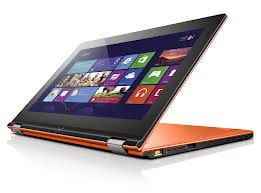
Many laptops now have screens that will flip over, or twist, so the keyboard is ‘put away’ and what is left is a monitor. Several of these are also touch enabled, making them tablets. The Lenovo Yoga is a good example of this.

lenovo yoga

Combined with a wireless, compact, keyboard (standard size keys, but not numeric pad) and a wireless mouse several options become available. Use it as a standard laptop. O tablet. Or a PC with separate mouse and keyboard. Position it on a tray. On a height adjustable table. Or even, at a push,  on a bench with the keyboard on a lap.

With weight constantly dropping and battery life rising (the Yoga is 1.6Kg with 8 hours battery life) the flexibility this arrangement presents is extended to working just about anywhere, in school or out, indoors or out.  Providing options and choices that are always available,  where once there were only limitations.

Mind Mapping with children who need support with organisation.

2connect for mind mapping

2Connect is a collaborative mind mapping tool.
Teachers  could use 2Connect for planning work, and as it is a collaborative tool  you could use it for planning together as a class on the whiteboard and then a child can  use the mind map as a word bank on a computer and cut down on typing time.
“2Connect is a concept mapping and planning tool which helps children organise thoughts (individually or collaboratively on a network). It’s a simple way to put ideas on a page.
Concept Map: Add words, sound and images
Sound Recorder: Record and play back your own voice to help support and guide your writing
Collaborative Tool: Work on the same concept map at the same time and see ideas instantly appear on all the other machines in real time.
Word Bank: Just link to any writing program, click on a word and it’s inserted into the text”
Some other mind mapping software is Kidspiration  (you can download a free 30 day trial) With colourful clip art.

Turns into a linear document with paragraphs.

Kidspiration turns into a linear document at the click of a button.

Planning your writing.


Subscribe By Email

This form is protected by reCAPTCHA and the Google Privacy Policy and Terms of Service apply.

Skip to toolbar